
Introduction
Move it - Scheduling: version1.3 build 13cb
Thanks for your attention to Move it. I hope you find Move it useful and
find practical use for it. Move it serves the task of scheduling tasks like
file or directory move or copy for you.
 Warning
Tasks Move
it can schedule
Contact
Main screen
Add Screen
 Task selector
From box
To box
Of over days
Tasks
Copy entire directory
Copy all contents off this directory
Copy all files in this directory
Copy all folders in this directory
Copy specific files
Move this entire directory
Move all contents off this directory
Move all files in this directory
Move all folders in this directory
Move specific files
Delete this entire directory
Delete all contents off this directory
Delete all files in this directory
Delete all folders in this directory
Delete specific files
Settings
Startup
Hidden
Preferences
It is very important that you understand the risk involved in using a program like Move it. Not only do you schedule tasks in the background, It is very likely you forget you have done this. But much more important; moving and copying files or directories should be done taking the upmost care. When you are deleting data unintended you will never forgive yourself. When you are moving application files or folders that can't be missed those application are likely to fail the next time you use the application; you will have to install it again. When you by any change have deleted files or folders that can't be missed from within the windows directory you may end up with a computer that needs to be reinstalled.
So do take very much care and always double check the tasks you have scheduled! There is a 'run once' button in the main screen, but of course one mistake and one run is enough to cause the damage.
When at first maybe not completely obvious Move it serves an valuable
task. If you have ever had the problem of an unattended folder full of junk
slurping up space on your computer, or have had a temp map or such, so huge
your windows got stuck, then you would have whished for a program like this.
With Move it you can schedule the following tasks:
Copy entire directory
Copy all contents off this directory
Copy all files in this directory
Copy all folders in this directory
Copy specific files
Move this entire directory
Move all contents off this directory
Move all files in this directory
Move all folders in this directory
Move specific files
Delete this entire directory
Delete all contents off this directory
Delete all files in this directory
Delete all folders in this directory
Delete specific files
Please read this help file carefully before mailing me questions.
AtsSoftware@brizp.com
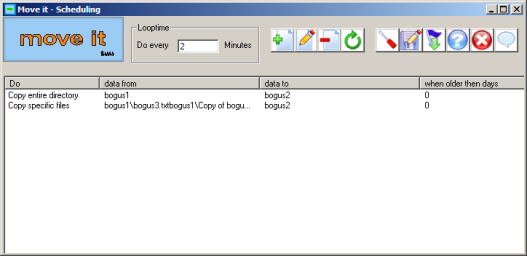
This is the normal
startup screen you get when you run Move it. Most of the window is
occupied by a large listbox in the lower half. The listboxheaders are Do,
data from, data to, when older then days. Below the header the scheduled
tasks are shown.
After first install these are two: Copy entire directory bogus1 to the
location of bogus2, and this is normally done when contents found is of any
date. Second action is the scheduled move of specific file in bogus1 :
bogus3.txt to the location of bogus2.These actions are explained in the
tasks section.
There are several ways to add edit or delete tasks.
 Add
task
Add
task
You can Add a task by clicking the 'Add task' button or by right clicking
the task in the tasklist and select 'Add task' from the popup menu. To add a
task it does not matter if you have already highlighted a task in the
listbox. Adding the task will be done in the Add screen. After that you
are ready adding the new task it will appear at the bottom of the scheduled
tasks already there in the tasklist.
 Edit
task
Edit
task
To edit a task you first have to select it from the tasklist by clicking it
once. To edit it, click the 'Edit task' button. You can also select 'edit
task' by doubleclicking the task that you want to edit, or you can
rightclick the task and select 'Edit task' from the popup menu. You edit the
task in the 'Add' screen. After that you have edited the task it will appear
changed in the tasklist. If you make changes and save them while Move it is
already running in the background, this background task will execute the
changes right away. If you do not want this you have to kill the hidden
instance of Move it in advance before you save the changes.
 Delete
task
Delete
task
To delete a task you first have to select it from the tasklist by clicking
it once. To delete it, click the 'Delete task' button. You can also select
'delete task' by rightclicking the selected task and select delete task from
the popup menu. You will be asked to confirm the deletion before deletion is
carried out. After deleting the task is removed from the tasklist.
 Run
once
Run
once
You can run the scheduled tasks once to check if things happen like you
expected. If you have any doubts if things will work the way you expect, it
is a good suggestion to make a backup copy of maps that will be deleted.
 Settings
By clicking the settings button you go to the settings menu where you
specify general Move it settings like 'run at startup'.
 Save
Save
By clicking the save button you save settings as well as tasklist. If you
have made any changes in either tasks or settings, you will always be asked
to save them. Once when saved you won't be asked again. If you make changes
and save them while Move it is already running in the background, this
background task will execute the changes right away. If you do not want this
you have to kill the hidden instance of Move it in advance before you save
the changes.
 Hide
and Run
Hide
and Run
By clicking the 'Hide and Run' button, Move it is going into 'Stealth mode'
and becomes active. The application interface (that is: the screen) will
disappear and it won't show in the taskbar. When hidden Move it has also
disappeared from the applications tab in the Windows Task Manager. It is
still visible though as a process under the processes tab. If you have
already scheduled Move it to run in the background you must not do this
since it will than run twice, at least until you restart.
 Help
Help
By clicking this button you will launch the equivalent of this help.
 Quit
Quit
By clicking this button you will close this program. If it is still running
in the background it will continue to do so.
 About
About
By clicking this button you will get the about massage displaying version
information and licensing.
Looptime
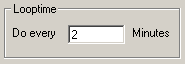
Do every minutes is where you specify the interval time in which you want
the tasks to be executed. If Move it is set to run once at startup,
this value is omitted.
Task Listbox.
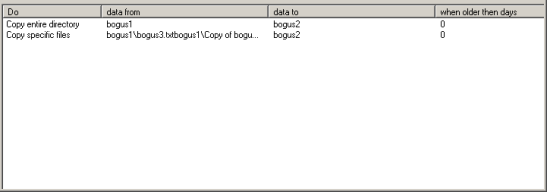
The main part of Move it is occupied by a big multicolumn listbox. This
is where the tasks scheduled are shown.
From left to right it is has columns named: Do, Data from, Data to, when
older then days. These are explained in the add screen section.
You can select a task and use the buttons to handle that specific task, or you can rightclick and use, add, edit or delete from the popup menu.
Task selectorFrom boxTo boxOf over days
The Add Screen is there to edit existing tasks or to schedule new ones. It
contains a number of controls, all related to the scheduling of the task
selected there. If you have chosen to edit an existing task then all the
fields are already populated. If you have chosen to schedule a new task, all
fields are empty except for the combobox at the left which in that case
says: "Select Task".
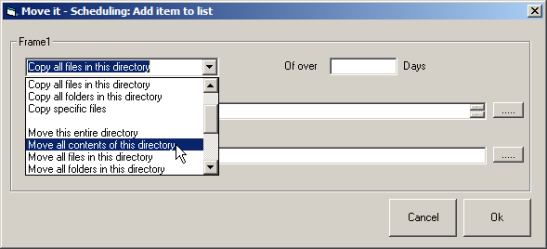
Task Selector
Use the Task Selector to select or change a selected task. Tasks
that can be selected are:
Copy entire directory
Copy all contents off this directory
Copy all files in this directory
Copy all folders in this directory
Copy specific files
Move this entire directory
Move all contents off this directory
Move all files in this directory
Move all folders in this directory
Move specific files
Delete this entire directory
Delete all contents off this directory
Delete all files in this directory
Delete all folders in this directory
Delete specific files
From box
This is where you type the source path where the copy, move or
delete action originates from. On the left side of it there is a button
which enables you to browse for Files or Folders. When the Task selection is
set to Specific Files you can select multiple files using the browse dialog.
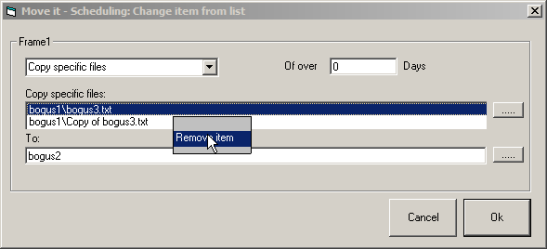
The textbox holds 1 line but on the right you can scroll up and down in case
multiple files were selected. When you rightclick the textbox while multiple
files were selected you get a popup listbox holding a list with the selected
files. The length of this list can be set to a maximum. You can do this
under Settings Preferences.
To box
This is where you type the destination directory where you want to
save the moved or copied files or folders. On the right side of the this
textbox there is a button which enables you to browse for the destination
directory. When the task is one that deletes a subject, this field is not
available.
Of over days
This is where you specify if and how many days, files or folders have to be
existent before they are copied, moved or deleted. You specify this per
task. If you specify an entire directory or subdirectories, these might
contain objects from a more recent date.
In Move it a number of tasks can be scheduled.
The next pages will explain one after the other which can be scheduled and what the exact action means.
Copy entire directoryCopy all contents off this directoryCopy all files in this directoryCopy all folders in this directoryCopy specific filesMove this entire directoryMove all contents off this directoryMove all files in this directoryMove all folders in this directoryMove specific filesDelete this entire directoryDelete all contents off this directoryDelete all files in this directoryDelete all folders in this directoryDelete specific files
Copy entire directory
This task will schedule the copying of an entire directory.
If you select a map 'x' that is goign to be copied into map 'y' it is going
there as a whole.
Afterward map 'y' will apart from what was there already, contain a map 'x,
with contents'.
If you only want to copy the contents of 'x', directly into 'y', you should
use Copy all contents off
this directory
Copy all contents off this directory
This task will schedule the copying of the contents of directory 'x' to
another directory 'y'. It is only about the contents. So map 'y' will not
contain 'x with contents', but only the load of separate items that was
found in 'x' So if map y contains (or is going to contain) more then just
x's contents you will most likely not be able to tell where it all came
from. This might be ok, but you just might prefer a copy of the complete
directory.
Copy all files in this
directory
This will copy all files from this directory to a chosen destination
directory. Beware that it is not the directory itself that is copied, only
its contents.
The destination directory will be 'filled' with 'loose objects', so to
speak.
Copy all folders in this directory
This will copy all folders from this directory to a chosen destination
directory. Beware that it is not the directory itself that is copied, only
its contents.
The destination directory will be 'filled' with 'lose objects', so to speak.
Copy specific files
With this task you can specify one or more specific files to be copied to
one common destination.
Move this entire directory
This task will schedule the moving of an entire directory. If you select a
map 'x' that is going to be moved into map 'y' it is going there as a whole.
Afterward map 'y' will, apart from what was there already, contain a map 'x,
with contents'.
If you only want to move the contents of 'x', directly into 'y', you should
use Move all contents off
this directory
Move all contents off this directory
Move all contents off this directory to a specified destination directory.
Take care that it is only the contents that are moved, not the folder
itself.
Move all files in this directory
This will move all files from a specified directory to a specified
destination.
Move all folders in this
directory
This will move all folders from a specified directory to a specified
destination.
Move specific files
With this task you can specify one or more specific files to be moved to one
common destination.
Delete this entire directory
This action schedules the deletion of a specified directory when existent.
Delete all contents off this directory
Deletes all contents of the directory specified, that is; if it is not
empty.
Delete all files in this directory
Deletes all files of the directory specified, that is; if there there are
any.
Delete all folders in
this directory
Deletes all folders of the directory specified, that is; if there there are
any.
Delete specific files
Deletes files specified; if there there are found.
The settings screen gives you the ability to set and save a
number of program settings.
The settings screen has three tabs;
Startup
Hidden
Preferences
Startup
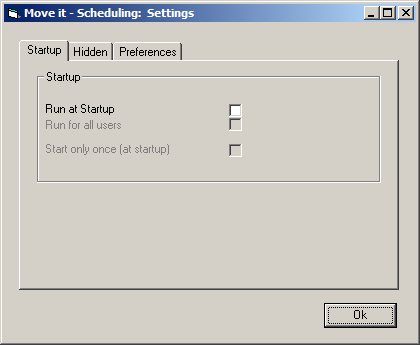
Under the Startup tab you can edit the behaviour of Move It
at Windows startup.
If you select Run at Startup, you select Move It to run as a
background task. This enables the Run for all Users checkbox.
If you leave the Run for all Users checkbox unchecked Move It runs as
a background task for current user only. If you check Run for all Users Move
It is installed to run as a background task for all users.
Hidden
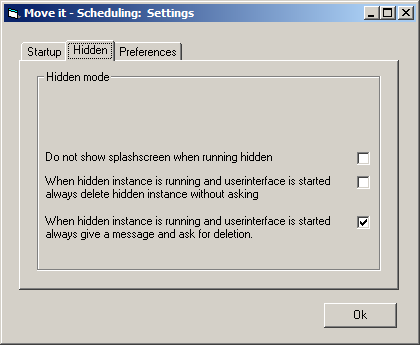
Under the Hidden tab you can edit several settings related to the hidden
behaviour of Move It. The first checkbox gives you the opportunity to
disable the small splashscreen just after Windows logon that tells you
Move It is running as a background task.
Move It is still visible though under Processes in the Windows task
Manager. When you start a regular instance of Move It, with user
interface, it may be confusing to you that another instance of Move It
may still be running as a background task.
If you are editing tasks or settings these do not apply to the running
background instance until it is killed and restarted. You can still test new
tasks with Run Once. If you want to Run and Hide, you will nevertheless be
asked to kill the running instance before going into stealth mode. You can
choose between the option to be alarmed at Move It startup if a running
instance is detected, or when detected to kill that instance right away.
Preferences
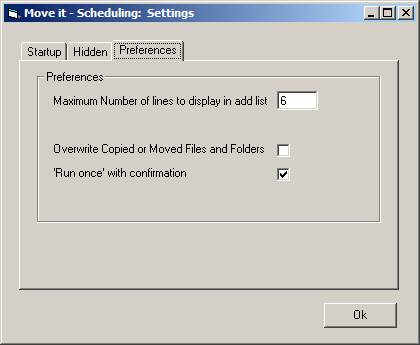
Under the Preferences tab you can set a variety of settings.
Maximum number of lines to display in add list is a setting you can use to
change the maximum number of lines to display there when you rightclick the
from-textbox in the add screen. This is only valid if you are editing a
selection of multiple files.
Overwrite Copied of Moved Files and Folders is a very important option. You
must always consider carefully if you want to overwrite or rename when
necessary.
If you choose overwrite, files and folders in the destination directory are
overwritten when existent.
When Move It is scheduled at short intervals, and overwrite is not
checked, the next free files or folders name is searched for.
This means that if this is a regular task, you have the risk of creating
huge amounts of files, directories and subdirectories which may slow your
system and take a lot of time to delete.
Renaming to the next free name follows the normal customary structure:
bogus4 becomes copy of bogus4,
copy (2) of bogus4, etc.
The order of creation is different for the task specified.
In case of All Directory Contents this may be files and
folders. So the next free common instance for both files and folders is
searched for. If only Files, or only Folders have to be moved
or copied, then only for those files or folders the next free common
instance in searched for.
If specific files are selected only the next free instance is
searched for. It does not have to be common.
For example:
When all contents are selected and the source contains:
bogus4(dir)
bogus3.text
copy of bogus3.txt
And the destination already contains:
copy of bogus3.txt
The resulting new Files and Folders will be:
copy (2) of bogus4(dir)
copy (2) of bogus3.txt
copy (2) of copy of bogus3.txt
When Folders only are elected and the source contains:
bogus4(dir)
bogus3.text
copy of bogus3.txt
And the destination already contains:
copy of bogus3.txt
The resulting new Folders will be:
copy of bogus4(dir)
When Files only are elected and the source contains:
bogus4(dir)
bogus3.text
copy of bogus3.txt
And the destination already contains:
copy of bogus3.txt
The resulting new Files will be:
copy (2) of bogus3.txt
copy (2) of copy of bogus3.txt
'Run Once' with confirmation
is very useful when test running a scheduled task and to make sure
that things happen the way you intended them. Each task executed is preceded
by a message box telling you the action that will be carried out. At this
stage you can still cancel actions and go back to edit tasks.